A virtual machine (VM) is a software-based emulation of a physical computer, allowing multiple operating systems to run on a single physical machine. It operates as if it’s a real computer, with its own CPU, memory, and storage. VMs are used for running different OSes, testing, and isolating applications without affecting the host system.
Virtual Machine
A Virtual Machine (VM) is a software-based system that acts like a real physical computer. It can run its own operating system and applications inside another operating system. VMs are managed by software called a hypervisor, allowing one physical machine to host multiple virtual systems. This setup is useful for testing, learning, and keeping systems secure.
Example: You can run Linux Ubuntu inside a Windows 10 system using a VM like VirtualBox without affecting your main Windows OS.
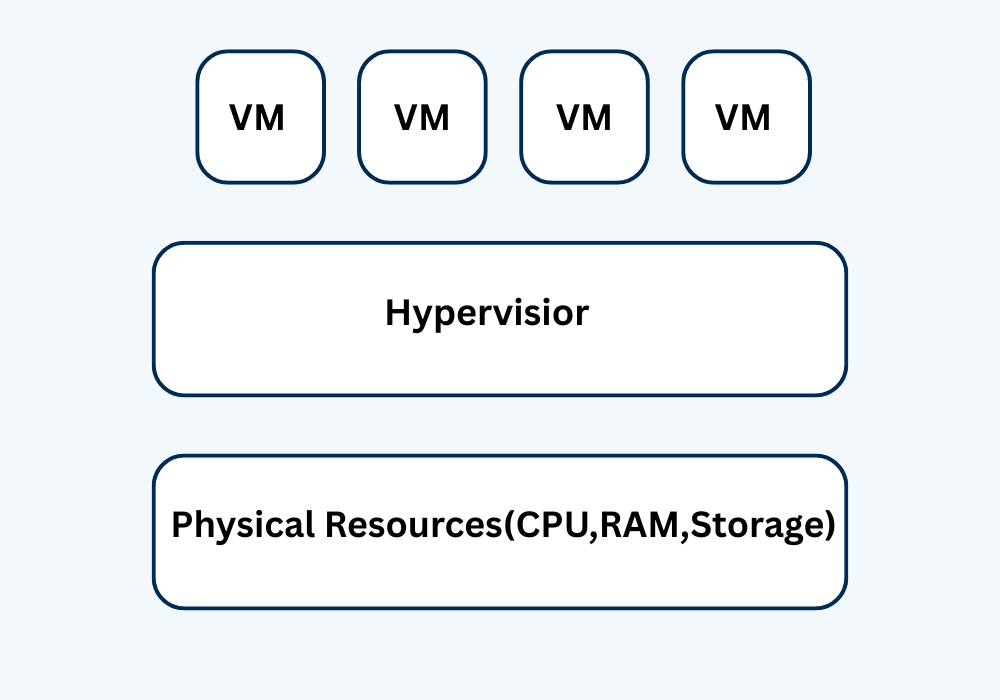
Components of a Virtual Machine
1. Virtual CPU (vCPU): A virtual CPU simulates a physical processor, allowing the guest operating system to execute instructions as if it were running on real hardware.
2. Virtual Memory (vRAM): Virtual memory is allocated from the host’s physical RAM and used by the virtual machine as its own system memory.
3. Virtual Hard Disk: The virtual hard disk acts like a real storage drive and is stored as a file (such as .vmdk or .vdi) on the host machine.
4. Virtual Network Interface (vNIC): A virtual network interface allows the VM to connect to other VMs, the host system, or the internet, just like a real network card.
5. Virtual BIOS/UEFI: The virtual BIOS or UEFI simulates the firmware needed to initialize hardware and boot the guest operating system.
How Does a Virtual Machine Work?
Let’s understand how a virtual machine works in 8 simple steps:
- You start with a physical computer (called the host system) that has hardware like CPU, RAM, and storage.
- On this host, you install a hypervisor, which is special software that can create and manage virtual machines.
- The hypervisor lets you create a virtual machine by allocating virtual CPU, RAM, disk, and other resources.
- Inside the VM, you install a guest operating system (like Linux, Windows, etc.), just like you do on a real computer.
- The guest OS thinks it is running on real hardware, but it’s actually using virtual hardware created by the hypervisor.
- You can now run and use the VM like a separate computer inside your original computer.
- Everything inside the VM is isolated, so any changes or errors don’t affect your main system.
- You can run multiple VMs at the same time, each with different OSes and settings.
Key characteristics and functionality
- Emulation: VMs emulate a physical computer system, allowing you to run different operating systems and applications as if they were on separate hardware.
- Isolation: Each VM is isolated from the host system and other VMs, meaning that software or operations within one VM will not affect the host or other virtual machines.
- Virtual Hardware: VMs utilize virtual hardware – CPU, memory, storage, etc. – which is abstracted from the underlying physical hardware of the host machine.
- Hypervisor: A specialized software layer called a hypervisor (also known as a virtual machine manager) makes virtualization possible by creating and managing VMs, allocating physical resources to them, and facilitating communication between the VM’s guest operating system and the host hardware.
- Portability: VMs are highly portable, allowing them to be moved and replicated easily across different physical servers or even between on-premises and cloud environments.
- Scalability: VMs enable easy scaling of applications by creating new VM instances or allocating more resources to existing ones as needed, without requiring new physical hardware.
Types of Virtual Machine
There are two types of Virtual Machine
- Process Virtual Machine
- System Virtual Machine
1. Process Virtual Machine
A Process Virtual Machine is a type of virtual machine that is created to run a single application or program. It provides a platform-independent environment so that the same program can run on different operating systems without modification.
Examples – Java Virtual Machine (JVM) runs Java programs by converting the compiled .class files into machine code that your computer can understand.
2. System Virtual Machine
A System Virtual Machine provides a complete environment to run a full operating system. It virtualizes the entire hardware of a real computer including CPU, memory, storage, and network allowing multiple OS instances to run independently on a single physical machine.
Examples – Oracle VirtualBox lets you create virtual computers that can run operating systems like Ubuntu or Windows inside your main system.
How to Set Up Virtual Machine?
Let’s understand how a virtual machine setup in 8 simple steps:
Step 1: Download and Install VirtualBox
Go to https://www.virtualbox.org and download VirtualBox for your operating system (Windows, macOS, or Linux).
After downloading, double-click the setup file and install it like any other software.
Step 2: Download the Operating System (ISO File)
Go to the official website of the OS you want to install.
For example:
- For Ubuntu: visit ubuntu.com/download
- For Windows: visit microsoft.com/software-download
Download the .iso file from the site. This is like a digital version of the OS installation CD.
Step 3: Create a New Virtual Machine
Open the VirtualBox software you just installed.
Click on the “New” button to create a new virtual machine.
Type a name for your VM (e.g., “Ubuntu VM”).
Select the Type as Linux (or Windows, depending on your ISO).
Select the Version (like Ubuntu 64-bit), then click Next.
Step 4: Allocate RAM (Memory)
Now choose how much RAM to give your VM.
For Ubuntu, 2048 MB (2 GB) is good.
Make sure not to use too much RAM leave enough for your main system to work properly.
Step 5: Create a Virtual Hard Disk
Select “Create a virtual hard disk now” and click Create.
Choose VDI (VirtualBox Disk Image) as the disk type.
Select Dynamically Allocated so the disk grows as needed.
Set the size of the virtual disk (e.g., 20 GB) and click Create.
Step 6: Mount the ISO File (Attach Operating System)
Click on your VM name, then click “Settings”.
Go to the Storage section.
Click the Empty CD icon under the Controller.
Now click the small CD icon on the right and choose “Choose a disk file…”
Browse your computer and select the ISO file you downloaded earlier (e.g., ubuntu.iso).
Click OK.
Step 7: Start the Virtual Machine and Install the OS
Click Start to power on the VM.
The VM will now boot using the ISO file.
You’ll see the OS installation screen (just like installing it on a real computer).
Follow the on-screen steps to complete the installation.
Step 8: (Optional) Install Guest Additions
After the OS is installed and running, you can improve performance and features.
In the VM window, go to Devices → Insert Guest Additions CD Image.
Inside the VM, open the CD and run the installer.
This enables features like full-screen display, shared clipboard, and drag-and-drop between host and VM.
Advantages of Virtual Machine
- Resource Efficiency and Cost Savings: Multiple VMs can share the resources of a single physical machine, reducing hardware costs, power consumption, and maintenance.
- Security: VMs provide an isolated environment for running applications, reducing security risks and allowing for safe testing of new software or handling potentially infected data without affecting the host system.
- Flexibility: VMs allow for running various operating systems and applications on a single machine, supporting diverse environments and scaling up or down as needed.
- Disaster Recovery: VMs simplify disaster recovery by enabling easy replication and restoration of entire systems.
- Development and Testing: VMs provide isolated environments for testing and development of software, ensuring that changes or potential issues don’t impact the primary system.
Disadvantages of Virtual Machine
- When multiple virtual machines are simultaneously running on a host computer, one virtual machine can be affected by other running virtual machines, depending on the workload.
- Virtual machines are not as efficient as a real one when accessing the hardware.
Frequently Asked Questions (FAQs)
Q1. What is the main purpose of a virtual machine?
A virtual machine allows you to run multiple operating systems on a single physical computer. It is used for testing, development, server hosting, and running isolated environments without affecting the host system.
Q2. Can I run a virtual machine on my laptop?
Yes, you can run a virtual machine on a laptop using virtualization software like VirtualBox, VMware Workstation, or Hyper-V. Make sure your system has enough RAM and CPU resources to support it.
Q3. Are virtual machines secure?
Yes, virtual machines are isolated from the host system, which adds a layer of security. However, like any system, they still require regular updates, antivirus protection, and proper configurations to remain secure.
Q4. What is the difference between a virtual machine and a container?
A virtual machine emulates a full operating system with its own kernel and resources. A container, on the other hand, shares the host OS kernel and is more lightweight. VMs offer stronger isolation, while containers are faster and more portable.
Q5. Do I need a license for the OS inside a virtual machine?
Yes, if you install a commercial operating system like Windows inside a virtual machine, you typically need a valid license key for that OS, just like you would for a physical computer.
Conclusion
A Virtual Machine (VM) is like a computer inside a computer. It lets you run multiple operating systems on the same hardware like running Linux on a Windows PC. VMs help save money, improve security, and make testing and development easier.
They are widely used in cloud computing, data centers, software testing, and even personal use. In short, virtual machines make computing more flexible, efficient, and safer a smart choice in today’s digital world.